Just a moment...
Learn how to publish, update, deactivate, reactivate, and delete your SPRL Bio Pages, including how to manage multiple pages.
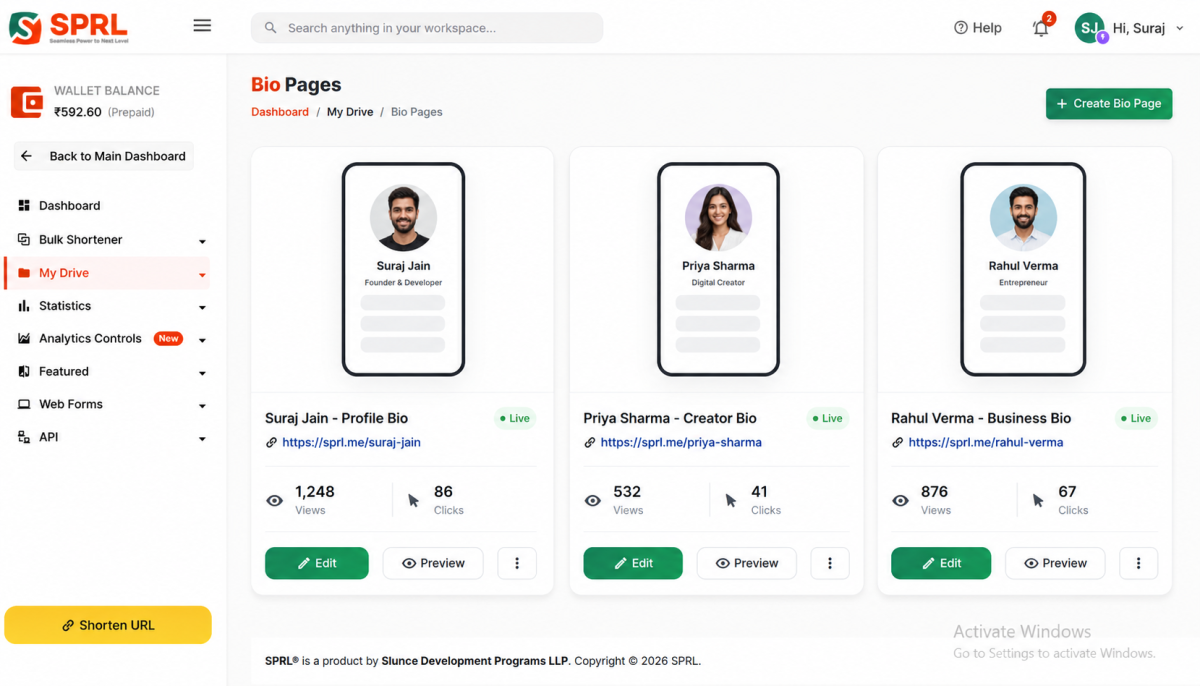
Once you have created your SPRL Bio Page, you can manage it throughout its lifecycle from your SPRL dashboard.
You can save your page as a draft, publish it when it is ready, update its content after publishing, temporarily deactivate it, reactivate it later, or permanently remove it when it is no longer required.
SPRL also supports multiple Bio Pages, allowing you to create separate pages for different profiles, businesses, brands, or purposes.
A Bio Page can have one of the following statuses:
| Status | Description |
|---|---|
| Draft | The page is being prepared and has not been published. |
| Published | The page is live and accessible using its public URL. |
| Unpublished | The page has been temporarily deactivated and is no longer publicly active. |
When your Bio Page is ready, you can publish it from the Bio Page builder.
Before publishing, review your:
Click Publish when you are ready to make the page publicly available.
After successful publication, the page receives its public URL using the selected domain and slug.
For example:
https://sprl.in/sprl-bio
You can continue editing your Bio Page after it has been published.
You can update:
After making changes, use the appropriate save or update option in the Bio Page builder.
You do not need to create a new Bio Page every time you want to change your information.
Your Bio Page URL is based on the selected domain and page slug.
For example:
https://sprl.in/sprl-bioIf you update the domain or slug, the public URL of the Bio Page can change accordingly.
If you temporarily do not want visitors to access your Bio Page, you can deactivate it instead of deleting it.
Deactivating a published Bio Page changes its status to Unpublished.
The Bio Page remains associated with its existing public URL information so that it can be reactivated later.
To deactivate a Bio Page:
Once deactivated, the page is no longer publicly active.
An unpublished Bio Page can be activated again when you are ready to make it available to visitors.
To reactivate a Bio Page:
After activation, the Bio Page returns to the Published status and its associated public URL becomes active again.
If you no longer need a Bio Page, you can delete it from your Bio Pages management area.
Deletion should be used when the page is no longer required rather than when you only want to temporarily hide it.
When a Bio Page is deleted, its associated Bio Page content is removed and its public URL is deactivated.
| Action | When to Use It |
|---|---|
| Deactivate | Temporarily take a published Bio Page offline and keep it available for future reactivation. |
| Delete | Remove a Bio Page that is no longer required. |
You can create multiple Bio Pages when you need separate pages for different purposes.
For example, you could create:
| Bio Page | Purpose |
|---|---|
| Personal Profile | Personal information, social profiles, and contact details. |
| Business Profile | Business information, website, location, and contact details. |
| Creator Profile | Social profiles, content, portfolio, and creator links. |
| Campaign Profile | Links and information related to a specific campaign or purpose. |
Each Bio Page can have its own:
This allows you to maintain different online profiles without having to combine unrelated information into one page.
When you have multiple Bio Pages, make sure you share the correct public URL for the intended audience.
For example:
Personal Profile
https://sprl.in/your-name
Business Profile
https://sprl.in/company
Creator Profile
https://sprl.in/creator
Using separate URLs makes it easier to direct different audiences to the most relevant information.
Your Bio Page can be updated whenever your information changes.
Consider reviewing your page regularly to make sure:
A typical Bio Page lifecycle looks like this:
Create ↓
Draft ↓
Publish ↓
Update ↓
Published ↓
Deactivate ──────────→ Unpublished ↓ Activate ↓ Published
Delete ↓
Removed
Use the status that best matches the current purpose of your page.
SPRL provides basic engagement statistics for your published Bio Pages, helping you understand how many people are visiting your page and interacting with your content.
You can see the Views and Clicks directly on each Bio Page card under My Drive → Bio Pages.
| Statistic | Description |
|---|---|
| Views | The number of times your published Bio Page has been visited through its public URL. |
| Clicks | The number of unique visitors who have clicked an actionable link or contact option on your Bio Page. |
For example, a Bio Page may display:
👁 1,248 Views
🔗 86 ClicksTo view more detailed statistics for a Bio Page:
This opens the statistics page for the selected Bio Page and allows you to review its available tracking information.
SPRL uses visitor-based tracking for Bio Page clicks. Once a visitor's click has been counted, subsequent clicks from the same browser are not counted again as a new unique click during the tracking period.
This helps provide a more meaningful indication of how many individual visitors are engaging with your Bio Page rather than simply counting every repeated click from the same visitor.
| Issue | What to Check |
|---|---|
| Bio Page is not publicly accessible | Check whether the page is currently published or unpublished. |
| Cannot use the selected URL | The selected slug may already be in use. Try another available slug. |
| Changes are not visible | Make sure the updated Bio Page has been saved successfully. |
| Page was intentionally taken offline | Check whether the Bio Page is in Unpublished status. |
| Need the page again after deactivation | Use Activate to return the unpublished page to Published status. |
| No longer need the page | Delete the Bio Page instead of leaving an unused page active. |
Yes. You can update the content and appearance of a published Bio Page whenever needed.
Yes. You can deactivate a published Bio Page and change its status to Unpublished.
Yes. An unpublished Bio Page can be activated again when you are ready to make it public.
Deactivate the page if you may want to use it again. Delete it when the page is no longer required.
Yes. You can create separate Bio Pages for different profiles, businesses, brands, campaigns, or other purposes.
Yes. Each Bio Page can have its own selected domain and slug, resulting in its own public URL.
Yes. You can edit the existing Bio Page and update its information, links, Info Blocks, and appearance.
The Bio Page changes to Unpublished status and is no longer publicly active. It can be activated again later.
The Bio Page and its associated content are removed, and its public URL is deactivated.
Yes. Multiple Bio Pages can be used to maintain separate personal, professional, business, or other profiles.
Yes. Published Bio Pages display the number of Views directly on the Bio Page management screen.
Yes. The Bio Page management screen displays the number of Clicks recorded for the page.
Views represent visits to your public Bio Page, while Clicks represent unique visitors who have interacted with an actionable link or contact option on the page.
Open My Drive → Bio Pages, open the More menu for the Bio Page, and select View Statistics.
No. SPRL uses visitor-based tracking to prevent repeated clicks from the same browser from being counted as a new unique click during the tracking period.
Our support team is always happy to assist you.
We use cookies to improve your experience, analyse traffic, and personalise content. By clicking “Accept”, you consent to the use of cookies as described in our Cookie Policy .
Accept cookies Read our Cookie Policy


