Just a moment...
Change colors, add logos and customize QR Codes.
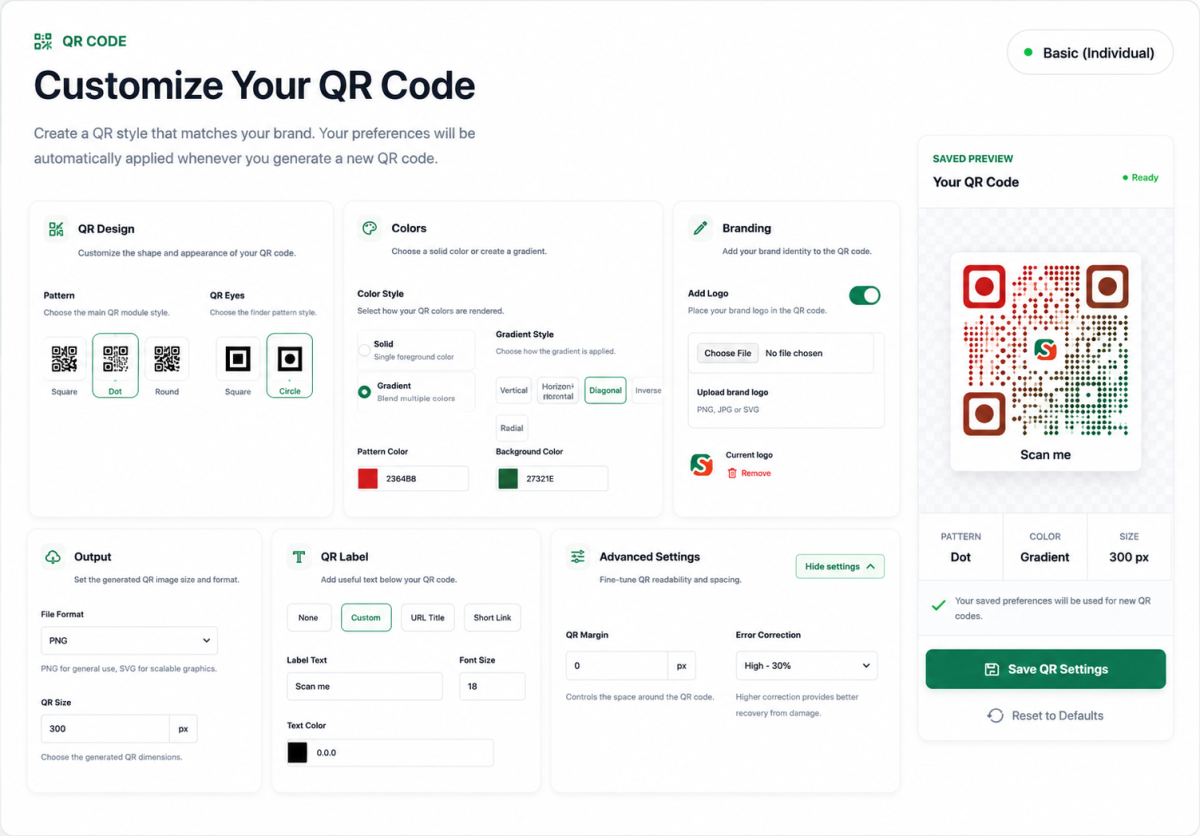
Customizing your QR Code helps reinforce your brand identity while making your QR Code more attractive and engaging. SPRL provides a range of QR Code design options that allow you to personalise the appearance of your QR Codes while keeping readability and scanning reliability in mind.
With the updated QR Code customization experience, you can configure the QR pattern, QR eyes, colours, gradients, branding, labels, output format, size, and advanced QR settings. Your saved preferences are automatically applied when you generate new QR Codes.
SPRL supports QR Code generation for both visitors and account holders. Some customization features depend on your account status.
| User Type | QR Code Generation | Saved Customization Settings | Brand Logo |
|---|---|---|---|
| Guest | Yes | Not available as account preferences | Not available |
| Logged-in Free Account | Yes | Available after QR customization is activated | Available after activation |
| Paid / Activated Account | Yes | Yes | Yes |
Guest users can generate QR Codes without creating an account. However, account-based customization preferences require an SPRL account, and QR customization must be activated for the account before the settings can be saved.
Guest QR Codes do not have saved account-level customization preferences. Creating an SPRL account allows you to manage your QR Codes and use account-based features.
| Option | Description |
|---|---|
| Pattern | Choose the main QR Code module style, including Square, Dot, or Round. |
| QR Eyes | Choose the QR Code corner marker style, including Square or Circle. |
| Colour Style | Choose between a solid colour and a gradient colour style. |
| Gradient Style | Choose how the QR Code gradient is applied, including Vertical, Horizontal, Diagonal, Inverse Diagonal, or Radial. |
| Pattern Colour | Choose the foreground colour used for the QR Code pattern. |
| Background Colour | Choose the background colour behind the QR Code. |
| Brand Logo | Upload a JPG, JPEG, or PNG logo to place in the centre of the QR Code. Logo customization is available for activated accounts. |
| QR Label | Add text below the QR Code using None, Custom, URL Title, or Short Link. |
| Label Text | Enter custom text to display below the QR Code when using the Custom label option. |
| Text Colour | Choose the colour of the QR Code label. |
| Font Size | Adjust the font size of the QR Code label. |
| QR Code Size | Set the generated QR Code dimensions. |
| File Format | Choose a supported QR Code output format, including PNG or SVG. |
| QR Margin | Control the spacing around the QR Code. |
| Error Correction | Choose the QR Code error correction level to improve recovery when part of the code is damaged or obscured. |
The QR pattern controls the appearance of the main modules that make up your QR Code.
| Pattern | Description |
|---|---|
| Square | Traditional square QR Code modules with a familiar appearance. |
| Dot | Rounded dot-style modules for a softer and more modern appearance. |
| Round | Rounded QR Code modules that provide a less traditional visual style. |
Choose a pattern that matches your design while maintaining sufficient contrast and clear module definition.
QR Eyes are the three large finder markers located in the corners of a QR Code. SPRL allows you to customise their appearance without changing their purpose.
| Eye Style | Description |
|---|---|
| Square | Traditional square finder markers. |
| Circle | Circular finder markers for a more modern appearance. |
SPRL allows you to use either a solid QR Code colour or a gradient design.
| Colour Style | Description |
|---|---|
| Solid | Uses a single foreground colour throughout the QR Code. |
| Gradient | Applies a colour gradient to the QR Code pattern. |
You can separately select the pattern colour and background colour. When using gradients, make sure the resulting QR Code still has enough contrast against its background.
Colour plays an important role in QR Code readability. Although SPRL provides flexible colour customization, the QR Code should always remain easy for scanners to detect.
| Recommended | Avoid |
|---|---|
| Dark pattern on a light background | Light pattern on a white background |
| Strong colour contrast | Low-contrast colour combinations |
| Gradients with clearly distinguishable colours | Gradients that fade into the background |
| Simple backgrounds | Busy backgrounds behind the QR Code |
Adding a brand logo can help reinforce your visual identity and make your QR Code easier for users to associate with your business.
Logo customization is available for accounts with QR customization activated.
SPRL supports:
For the best results:
SPRL allows you to add a label below your QR Code. Labels can provide additional context and encourage users to scan the code.
| Label Type | Description |
|---|---|
| None | No label is added below the QR Code. |
| Custom | Add your own text below the QR Code. |
| URL Title | Use the URL title as the QR Code label. |
| Short Link | Display the SPRL short link as the QR Code label. |
Custom labels also allow you to configure the label text colour and font size.
The QR Code size should be selected according to where the QR Code will be displayed.
| Use Case | Recommendation |
|---|---|
| Website or Email | A standard QR Code size is generally sufficient. |
| Social Media | Use an appropriate resolution that remains clear after resizing or compression. |
| Flyers & Brochures | Use a larger output size for better print clarity. |
| Posters & Banners | Use a high-resolution QR Code appropriate for the final print size. |
SPRL provides supported QR Code output formats for different use cases.
| Format | Best For |
|---|---|
| PNG | Websites, social media, documents, and general-purpose use. |
| SVG | Scalable graphics and situations where the QR Code needs to remain sharp at different sizes. |
Advanced settings allow you to fine-tune the spacing and reliability of your QR Code.
| Setting | Description |
|---|---|
| QR Margin | Controls the amount of space around the QR Code. |
| Error Correction | Controls how much damaged or obscured QR Code data can potentially be recovered by scanners. |
A suitable margin helps separate the QR Code from surrounding content, while higher error correction can provide additional resilience when using logos or customized designs.
SPRL allows visitors to generate QR Codes without signing in.
Guest users can use the QR Code Generator to create QR Codes for supported content types without first creating an account.
Guest QR Codes are intended for quick generation and download. Account-level preferences and management features are available after creating an SPRL account.
Signing in to an SPRL account allows you to use account-based QR Code features and save your QR customization preferences.
Your saved QR settings can be automatically applied when generating new QR Codes, helping maintain a consistent design without configuring the same options every time.
QR customization must be activated for the account before customization settings can be saved.
Accounts with QR customization activated can save and use the available branding and customization settings, including logo customization.
This allows you to maintain a consistent QR Code appearance across new QR Codes generated from your account.
The design may have reduced readability. Increase the colour contrast, simplify the design, reduce the logo size, or increase the error correction level before testing again.
Use darker colours with stronger contrast and avoid gradients that fade into the background or make individual QR modules difficult to distinguish.
Reduce the logo size and test the QR Code again. The QR Code should remain clearly readable after the logo is added.
Increase the QR Margin setting to provide additional separation between the QR Code and surrounding content.
QR customization settings are account-based. Make sure you are signed in and that QR customization has been activated for your account.
Yes. SPRL allows guests to generate QR Codes without signing in, subject to the applicable guest usage limitations.
Yes. Saved QR customization preferences are available for account users when QR customization has been activated for the account.
SPRL currently supports Square, Dot, and Round QR patterns.
SPRL currently supports Square and Circle QR eye styles.
Yes. You can choose a solid colour or gradient colour style. Gradient options include Vertical, Horizontal, Diagonal, Inverse Diagonal, and Radial.
Yes. Logo customization is available for accounts with QR customization activated. Supported logo formats include JPG, JPEG, and PNG.
Yes. SPRL supports None, Custom, URL Title, and Short Link labels. Custom labels also allow you to configure the label colour and font size.
Yes. You can configure the QR Code output size according to your intended use.
SPRL currently supports PNG and SVG output formats.
Advanced settings currently include QR Margin and Error Correction. These options allow you to fine-tune spacing and QR Code reliability.
It can if the design reduces contrast, obscures important QR Code elements, or makes the modules difficult to distinguish. Always preview and test your QR Code before publishing or printing it.
Our support team is always happy to assist you.
We use cookies to improve your experience, analyse traffic, and personalise content. By clicking “Accept”, you consent to the use of cookies as described in our Cookie Policy .
Accept cookies Read our Cookie Policy


